# Troubleshooting

### No server is available to handle your request

The loader authentication server request is being blocked by your ISP or a firewall present on the network.

* [use a VPN](https://www.tunnelbear.com/download) to complete authentication and then disconnect when finished (or stay connected if you desire)

<figure><img src="https://3661827449-files.gitbook.io/~/files/v0/b/gitbook-x-prod.appspot.com/o/spaces%2FKDcbGlPDCQPYsgmPubxI%2Fuploads%2Fs3nKIbujjs81Iiw3lReU%2Fcod%20vpn%20needed.png?alt=media&#x26;token=42e81a6a-3ec8-47fd-9874-b4daa39f8888" alt="" width="305"><figcaption><p>No server is available to handle your request error.</p></figcaption></figure>

### An error occurred while sending the request.

The loader authentication server did not respond.

* the auth server may be running slow; retry in a few minutes
* something on the PC or the network is blocking the build server, [use a VPN](https://www.tunnelbear.com/download)
* the auth server may be down; wait longer to retry

<figure><img src="https://3661827449-files.gitbook.io/~/files/v0/b/gitbook-x-prod.appspot.com/o/spaces%2FKDcbGlPDCQPYsgmPubxI%2Fuploads%2FnZh25mMgTqEGCI297aoo%2Fimage%20(51).png?alt=media&#x26;token=0a06eb59-eb22-48cc-ab33-3a42f2d847d7" alt=""><figcaption><p>An error occurred while sending the request error.</p></figcaption></figure>

### **Game crashes or** [**BSoD**](#user-content-fn-1)[^1]

* Return to the [setup-guide](https://docs.dexa.im/non-dma-products/call-of-duty/charlie/setup-guide "mention") and follow **all** steps
* Typically, game crashes are related to the cheat's inability to access memory properly. For this, you will need to check if **memory integrity** is toggled off in [#setup-guide](https://docs.dexa.im/non-dma-products/charlie/setup-guide#setup-guide "mention")

{% hint style="warning" %}
Some users have reported that **memory integrity** settings will re-enable after a PC reboot.
{% endhint %}

### **Menu & Injection Issues**

If you are having issues with the menu opening or injecting, ensure you have uninstalled all antivirus software, disabled Windows Defender (some users report Windows Defender auto-restarting after a reboot), and have the following drivers downloaded and up to date:

* Microsoft [Visual C++ Redistributables](https://learn.microsoft.com/en-us/cpp/windows/latest-supported-vc-redist?view=msvc-170#latest-microsoft-visual-c-redistributable-version)
* Microsoft [.NET framework](https://dotnet.microsoft.com/en-us/download) (v8.0) & [.NET framework](https://dotnet.microsoft.com/en-us/download/dotnet-framework/thank-you/net481-web-installer) (v4.8.1)
* Microsoft [DirectX End-User Runtimes](https://www.microsoft.com/en-us/download/details.aspx?id=35)

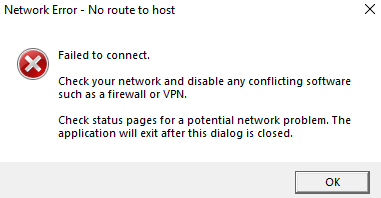
## Failed to connect

When injecting, the user receives this error:

> Check your network and disable any conflicting software such as a firewall or VPN.

<figure><img src="https://3661827449-files.gitbook.io/~/files/v0/b/gitbook-x-prod.appspot.com/o/spaces%2FKDcbGlPDCQPYsgmPubxI%2Fuploads%2Fgit-blob-12290bf595e23a1dc56006526e6e2530fbf24fcf%2Fchrome_dZXYIxh7iy.png?alt=media" alt="" width="286"><figcaption><p>Failed to connect to host/VPN error.</p></figcaption></figure>

Something on your PC or network is blocking our authentication server. This error is typically a software or firewall issue.

* uninstall all third-party [VPN software](#user-content-fn-2)[^2]
* uninstall all third-party [firewall software](#user-content-fn-3)[^3]
* uninstall all third-party [networking software](#user-content-fn-4)[^4]

Sometimes, this is caused by your router or modem configuration.

* login to your router and check the firewall settings or any network security settings, parental controls, etc. that may be filtering or blocking traffic
  * optionally, you can whitelist or "DMZ" your PC in your router (we do not recommend leaving your PC in a DMZ, ever - only do this to test!)

Lastly, this could be your ISP blocking our auth servers.

* Install a VPN software such as [NordVPN](https://go.nordvpn.net/SH8k3)

If all the above solutions do not work, reinstall Windows.

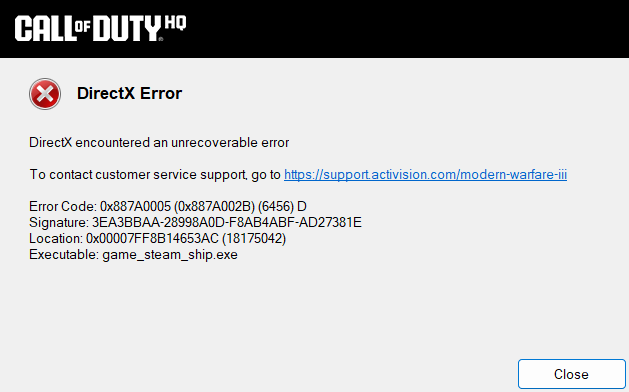
## DirectX Error code 0x887A005

This error is complex, as it is caused by multiple issues. There is no known single fix for this error.

<figure><img src="https://3661827449-files.gitbook.io/~/files/v0/b/gitbook-x-prod.appspot.com/o/spaces%2FKDcbGlPDCQPYsgmPubxI%2Fuploads%2Fgit-blob-f3705b8e5eca814c4689872f1085a9a1e7aafab4%2Fdirectx.png?alt=media" alt="" width="472"><figcaption><p>DirectX Error; "DirectX encountered an unrecoverable error."</p></figcaption></figure>

In order and one-by-one, try the following resolution steps:

#### Most likely to resolve this error:

* Disable DLSS Frame Generation, or,
* [Create a new user](ms-settings:otherusers) in Windows

#### Other steps to try:

* Return to the [#setup-guide](https://docs.dexa.im/non-dma-products/charlie/setup-guide#setup-guide "mention") and follow **all** steps
* Press start -> type `%appdata%` -> go up a directory to `C:\Users\[username]\AppData`, navigate to the `Local` folder -> look for folders with `random lowercase letters` -> delete them
* In this same directory, Local, look for a folder named `loader` -> delete the folder

{% hint style="info" %}
When running the CHARLIE cheat, it generates a random folder name in the `Local` directory and dumps the loader executable, configuration files, and other necessary files to run the cheat. Sometimes, when the cheat injects, it can hook incorrectly into the kernel of your PC and corrupt itself. By deleting it, you effectively clear this temporary directory to allow the cheat to run "fresh."
{% endhint %}

* Press start -> type `documents` -> navigate to the `Call of Duty` directory -> delete the `players` folder
* Follow the steps in [#menu-and-injection-issues](#menu-and-injection-issues "mention")
* Press start -> type `windows update` -> check for Windows updates, also click `advanced options` and check for optional updates -> install all updates
* If using an NVIDIA GPU, press start -> type `geforce experience` -> click drivers -> in the top right, click the three dots -> choose `studio driver` -> install these drivers
* Reboot PC

{% hint style="info" %}
In NVIDIA GeForce, the Studio drivers are considered "production-ready" drivers. This means NVIDIA has validated and tested these drivers to be stable.
{% endhint %}

This video may also help troubleshoot this DirectX error:

{% embed url="<https://youtu.be/e4gYoAgKeZY>" %}
Video guide for resolving the DirectX error.
{% endembed %}

[^1]: The "blue screen of death"

    Windows stops (freezes) and gives an error before rebooting the PC.

[^2]: Any VPN providers such as NordVPN, OpenVPN, etc.

[^3]: Software such as: Norton 360, BitDefender, McAfee, etc.

[^4]: Software such as "TCP optimizers," "packet enhancers," "ping boosters," etc.