> For the complete documentation index, see [llms.txt](https://docs.dexa.im/llms.txt). Markdown versions of documentation pages are available by appending `.md` to page URLs; this page is available as [Markdown](https://docs.dexa.im/non-dma-products/apex-legends/vertex/using-the-menu.md).

# Using the Menu

## How to Use

* Press the INS[^1] key to open/close the menu

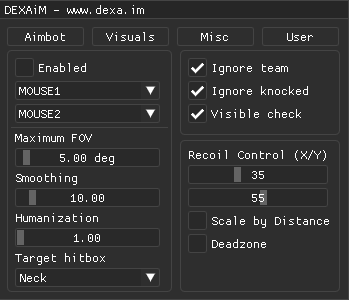
<figure><img src="/files/JZLssoxtclxrUOis0JHg" alt=""><figcaption><p>The VERTEX menu. <strong>Please note:</strong> the features shown here are subject to change. This is to be used for reference only.</p></figcaption></figure>

### Setting the Aim Key

The aim key is the key the user presses to activate the aimbot. By default, both aim keys are M1 or MOUSE1.

* choose two different aim keys

### Menu Features

This menu has multiple features.

#### Aimbot menu

* **maximum FOV** -> maximum field of view, AKA the FOV circle in the center of your screen. When pressing the aim key, your crosshairs will move to the closest target within the FOV circle
* **smoothing** -> how slowly (higher values) or quickly (lower values) the crosshairs move when pressing the aim key
* **humanization** -> adds random jitter, dead zone, and smoothing values when the aim key is pressed; this creates a more human-like behavior
* **target hitbox** -> the selected bone (typically referred to as the bone) on the player target you wish to aim at when pressing the aim key
* **visible check** -> when pressing the aim key, the aimbot will check if the desired target(s) are visible (occluded behind a wall, ground, object, etc.)
* **recoil control** -> controls the x axis and y axis recoil amount; higher values for more control (less recoil), lower values for less control (less recoil)
* **scale by distance** -> scales the recoil control by the distance of the target; the farther the target is away, the aimbot will control recoil more effectively
* **dead zone** -> how much movement the crosshair will have on the bone (target hitbox); for example, if the player sets the bone to head, the crosshair will move to exactly one (1) pixel on the head hitbox when the aim key is pressed. With dead zone, this pixel will expand to cover a larger area. This means the crosshair will "move" more within the zone (the dead zone, aka the selected bone), which creates more human-like behavior

#### Visuals menu

<figure><img src="/files/437NHh2snsTyd5F9DfpN" alt=""><figcaption><p>The visuals menu (for both VETEX and FRESH).</p></figcaption></figure>

* **enabled** -> enable or disable the visuals (ESP) function entirely
* **bounding box** -> a 2D box drawn on the player model
* **player name** -> player name - it kinda says it on the box, yeah?
* **distance** -> distance to player in meters
* **weapon** -> current weapon/item equipped by the player
* **ammunition** -> show ammo on visuals (ESP)
* **line to target** -> AKA snaplines; shows a line drawn from the user's player to all targets within draw distance (range)
* **OOF arrows** -> out-of-field arrows; similar to line to target (snaplines), OOF arrows show a line around the crosshair that helps quickly identify in which direction a target is within range

## Controller Support

Controllers are not natively supported within the menu at this time. Alternatively, you can use key remapping software such as [reWASD](https://www.rewasd.com/) (recommended),[ AntiMicroX](https://github.com/AntiMicroX/antimicrox/), or [JoyToKey](https://joytokey.net/en/download).

{% hint style="info" %}
We do not provide support for these tools. If you need help, please get in touch with their respective support teams.
{% endhint %}

## Configs

Configs are located in `C:\SOMEHASH_apex`

* Download configs from our Discord server or create your own in the menu
* Configs are saved as `.json` files
* Replace the `.json` in the directory above to append that config

{% file src="/files/ccpi6zs1aiIZmUPLwrHu" %}
Example **Legit Config** `.json`.
{% endfile %}

[^1]: The INSERT key on the keyboard.


---

# Agent Instructions
This documentation is published with GitBook. GitBook is the documentation platform designed so that both humans and AI agents can read, navigate, and reason over technical content effectively. Learn more at gitbook.com.

## Querying This Documentation
If you need additional information that is not directly available in this page, you can query the documentation dynamically by asking a question.

Perform an HTTP GET request on the current page URL with the `ask` query parameter, and the optional `goal` query parameter:

```
GET https://docs.dexa.im/non-dma-products/apex-legends/vertex/using-the-menu.md?ask=<question>&goal=<endgoal>
```

`ask` is the immediate question: it should be specific, self-contained, and written in natural language.
`goal` is optional and describes the broader end goal you are ultimately trying to accomplish on behalf of the user. GitBook uses it to tailor the answer towards what is most useful for that goal.

The response will contain a direct answer to the question and relevant excerpts and sources from the documentation.

Use this mechanism when the answer is not explicitly present in the current page, you need clarification or additional context, or you want to retrieve related documentation sections.
