# Ferrum Setup Guide
## On the DMA PC
{% stepper %}
{% step %}
### Plug in the Ferrum
* With the USB ports facing you:
* **Left USB-C port** to the **GAMING PC**
* **Center USB-A port** to the **MOUSE (or whichever device)**
* **Right USB-C port** to the **DMA PC**
{% hint style="info" %}
Use USB ports directly on the GAMING PC's motherboard. Do **not** use the front case USB ports.
{% endhint %}
{% endstep %}
{% step %}
### Install drivers and Ferrum software
{% hint style="danger" %}
These steps should be completed on your DMA (2nd) PC. Installing these on your Gaming (Main) PC is a detection vector.
{% endhint %}
* Download the [Silicon Labs CP210x drivers `(CP210x Universal Windows Driver)`](https://www.silabs.com/software-and-tools/usb-to-uart-bridge-vcp-drivers?tab=downloads)
* install the drivers
* extract the .zip
* right click on `silabser.inf` and select `install`
* Download the [Ferrum One Utility](https://cdn.shopify.com/s/files/1/0682/1897/8358/files/ferrum-installer.exe?v=1774450613)
* install the software
{% hint style="info" %}
**Note:** If you get a `Backend Status: Disconnected` error after installing the Ferrum software, reboot the PC, or close and re-open the Ferrum software.
{% endhint %}
{% endstep %}
{% step %}
### Verify the Ferrum in the utility
* If the Ferrum connects correctly, you will see your connected board(s) in the `Boards` tab
{% endstep %}
{% step %}
### Set device type
* If the device being used is a keyboard, set the Type to Keyboard. For mouse, choose Mouse (default option). If both, you can choose both options.
* You can also set the Ferrum Utility's language in the bottom left.
{% endstep %}
{% step %}
### Connecting to DMA software
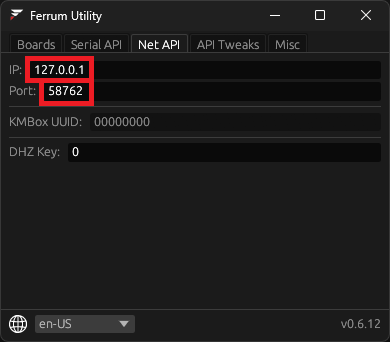
* To use the Ferrum with any supported DMA software, use the defined `COM Port` in the `Serial API` tab or the `IP Address` in the `Net API` tab.
* Use these settings within your DMA software's configuration menu to connect to the Ferrum