# Full Security Disable Guide + Images

## Introduction

This product is [kernel-level internal](#user-content-fn-1)[^1] software, which requires you to disable your PC's security features to operate.

### An Important Note

{% hint style="danger" %}
Using this software online against other human players exposes the PC and/or the account you choose to play on to risk. This may result in account suspensions, bans, HWID bans, etc.

**For this reason, we always recommend using an alternate account. Never use your main account when using any of our software.**
{% endhint %}

Our software is consistently updated to remain undetected and safe to use online. Always check the product status you wish to use before using it.

{% hint style="info" %}
If you are new to using this kind of software, it is important to understand how bans work. Read more: [](https://docs.dexa.im/bans "mention")
{% endhint %}

## Setup Guide

Follow all the steps in the setup guide. **Do not skip steps.** Regardless of whether you have used other cheat software before.

### 1. Preparing Windows

* [Run Windows Update](ms-settings:windowsupdate) and install all the latest updates, rebooting the PC and re-checking for updates each time until no further updates are available.
* Update your video card (GPU) drivers:
  * [NVIDIA GPU drivers](https://www.nvidia.com/en-us/geforce/drivers/)
  * or [AMD GPU drivers](https://www.amd.com/en/support/download/drivers.html)
* Download & install:
  * Microsoft [Visual C++ Redistributables](https://learn.microsoft.com/en-us/cpp/windows/latest-supported-vc-redist?view=msvc-170#latest-microsoft-visual-c-redistributable-version)
  * Microsoft [.NET framework](https://dotnet.microsoft.com/en-us/download) (v8.0) & [.NET framework](https://dotnet.microsoft.com/en-us/download/dotnet-framework/thank-you/net481-web-installer) (v4.8.1)
  * Microsoft [DirectX End-User Runtimes](https://www.microsoft.com/en-us/download/details.aspx?id=35)

### 2. Removing Antivirus & Anti-cheat

* Uninstall all third-party [antivirus software](#user-content-fn-2)[^2]
* Uninstall all third-party [anti-cheat software](#user-content-fn-3)[^3]

{% hint style="info" %}
**Do not uninstall** Easy Anti-cheat (EAC) or BattlEye.
{% endhint %}

### 3. Disable the Vulnerable Driver Blocklist

* Download the Turn OFF Windows Vulnerable Driver Blocklist registry file below
  * Extract (drag and drop the file *out of* the folder/archive) the file
  * Run the file
  * Reboot the PC

{% file src="<https://3661827449-files.gitbook.io/~/files/v0/b/gitbook-x-prod.appspot.com/o/spaces%2FKDcbGlPDCQPYsgmPubxI%2Fuploads%2Fgit-blob-5d00096b330ed3bc8185898b35b7f0f00abcd10f%2FTurn%20OFF%20Windows%20Vulnerable%20Driver%20Blocklist.zip?alt=media>" %}

{% hint style="warning" %}
Some users have reported that the Vulnerable Driver Blocklist will be re-enabled after a PC reboot. Always check this before using this product.
{% endhint %}

### 4. Disable Security Settings

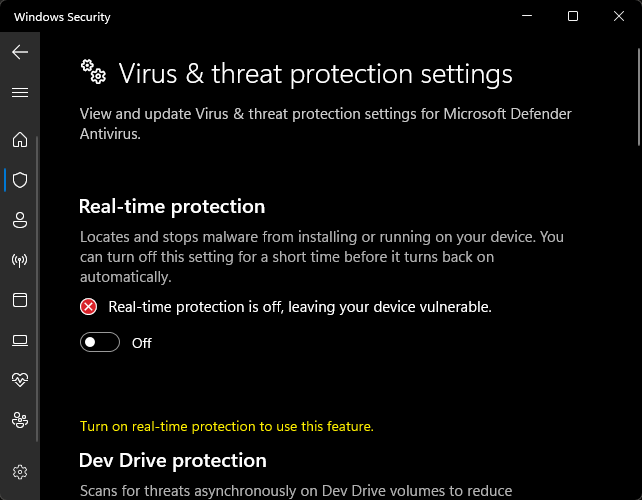
* Toggle off [real-time protection](windowsdefender://threatsettings/) (Windows Security -> virus & threat protection)

<figure><img src="https://3661827449-files.gitbook.io/~/files/v0/b/gitbook-x-prod.appspot.com/o/spaces%2FKDcbGlPDCQPYsgmPubxI%2Fuploads%2Fgit-blob-5a9050d2a1223b430fad949c1717e08a8583a865%2FApplicationFrameHost_vQYnWLNb8Z.png?alt=media" alt="" width="482"><figcaption><p>Toggle OFF Real-time protection.</p></figcaption></figure>

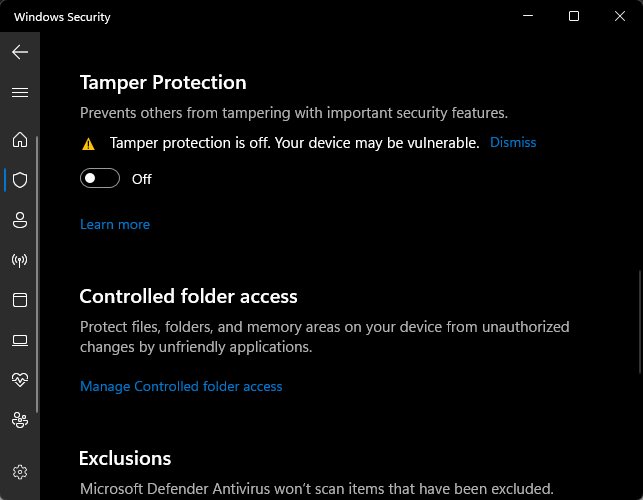
* Toggle off [Tamper Protection](windowsdefender://threatsettings/) (Windows Security -> virus & threat protection)

<figure><img src="https://3661827449-files.gitbook.io/~/files/v0/b/gitbook-x-prod.appspot.com/o/spaces%2FKDcbGlPDCQPYsgmPubxI%2Fuploads%2Fgit-blob-11414154ef00f69c5f088ac857e75c1e9039a424%2FApplicationFrameHost_Ta7zAWnu9l.png?alt=media" alt="" width="482"><figcaption><p>Toggle OFF Tamper Protection.</p></figcaption></figure>

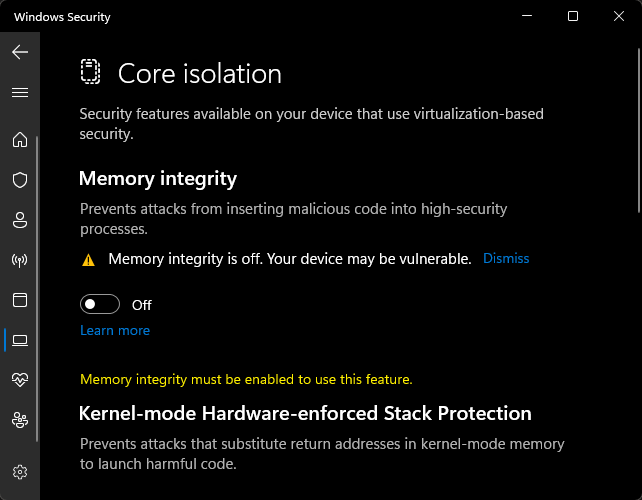
* Toggle off [memory integrity](windowsdefender://coreisolation/) (Windows Security -> device security -> core isolation)

<figure><img src="https://3661827449-files.gitbook.io/~/files/v0/b/gitbook-x-prod.appspot.com/o/spaces%2FKDcbGlPDCQPYsgmPubxI%2Fuploads%2Fgit-blob-38eb472471bd20a308e77106711a32e2991bfee7%2FApplicationFrameHost_7V6ehZqtno.png?alt=media" alt="" width="482"><figcaption><p>Toggle OFF memory integrity.</p></figcaption></figure>

* Disable Windows Defender using [Sordum Defender Control](https://www.sordum.org/9480/defender-control-v2-1/):
  * Extract the file (drag and drop the folder *out of* the .zip archive)
  * Run dControl.exe as administrator
  * Disable Windows Defender using dControl

<figure><img src="https://3661827449-files.gitbook.io/~/files/v0/b/gitbook-x-prod.appspot.com/o/spaces%2FKDcbGlPDCQPYsgmPubxI%2Fuploads%2Fgit-blob-20ae4070fa80bc9dddbe5b6643d8de83538dd1bd%2FdControl_sX0hJC9nde%20(1).png?alt=media" alt=""><figcaption><p>Defender Control should be red if it ran correctly.</p></figcaption></figure>

{% file src="<https://3661827449-files.gitbook.io/~/files/v0/b/gitbook-x-prod.appspot.com/o/spaces%2FKDcbGlPDCQPYsgmPubxI%2Fuploads%2Fgit-blob-57dfd52fb61084aa4c95103c824dd1f7c05cc113%2FDCONTROL.zip?alt=media>" %}
Sordum Defender Control
{% endfile %}

### 5. Enter BIOS

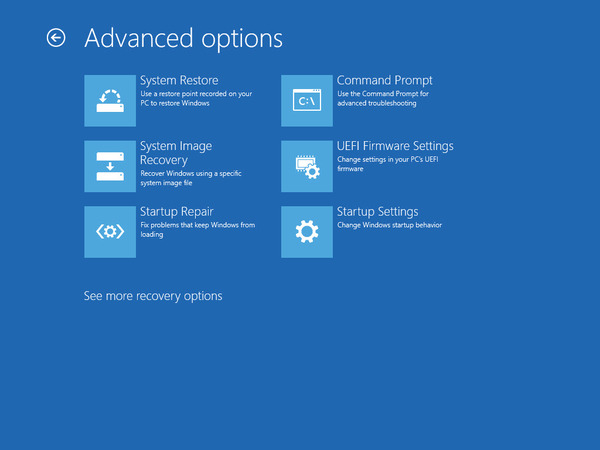
* Press Start -> type `cmd` -> type `shutdown /r /fw` press `ENTER`
  * this will reboot the PC and enter the BIOS
  * if it does not, choose the UEFI Firmware Settings to enter BIOS

<figure><img src="https://3661827449-files.gitbook.io/~/files/v0/b/gitbook-x-prod.appspot.com/o/spaces%2FKDcbGlPDCQPYsgmPubxI%2Fuploads%2Fgit-blob-c0b5c52eaf7396517ae0614ed3f935513d5d6f10%2Fuefi-firmware-settings-advanced-options-startup.jpg?alt=media" alt="" width="450"><figcaption><p>Choose the UEFI Firmware Settings option.</p></figcaption></figure>

### 6. Disable Virtualization

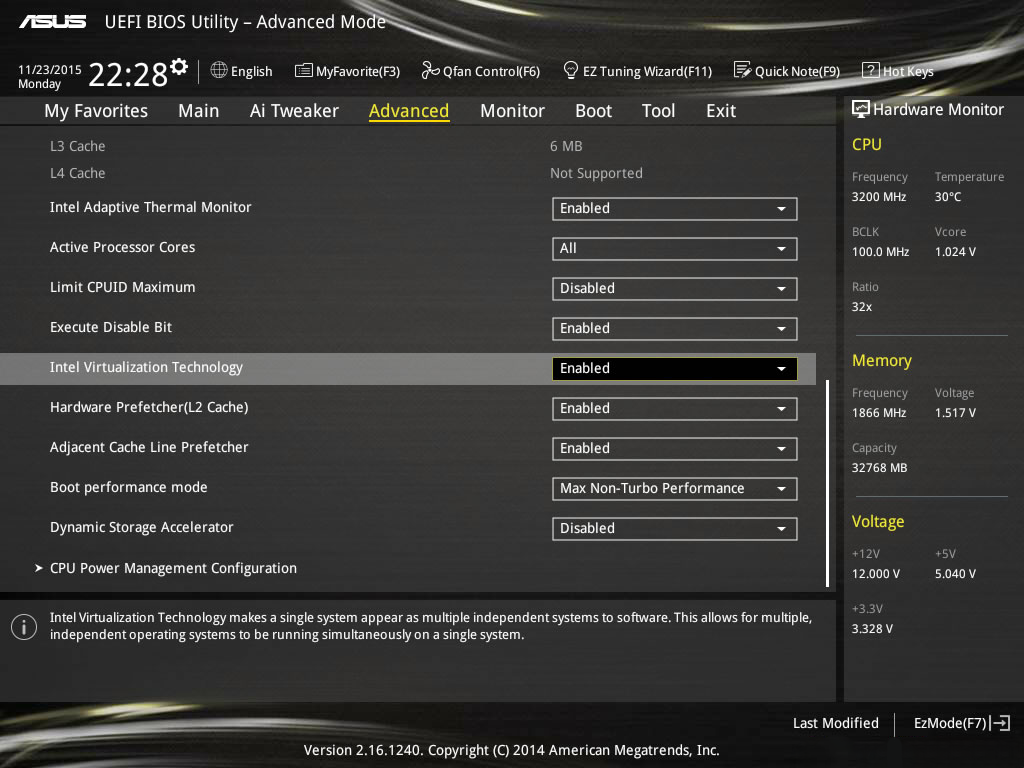
* Locate the virtualization enable/disable toggle in the CPU, Advanced, Tweaks, etc. menus.
  * For Intel CPUs, look for Intel Virtualization, Intel VT-X, etc.
  * For AMD CPUs, look for SVM mode, AMD-V, etc.
* Disable Virtualization

<figure><img src="https://3661827449-files.gitbook.io/~/files/v0/b/gitbook-x-prod.appspot.com/o/spaces%2FKDcbGlPDCQPYsgmPubxI%2Fuploads%2Fgit-blob-9269e8f65e86daaa4b280dedaa2cd2ea05ca53d9%2Fintel-virtualization-technology.png?alt=media" alt="" width="563"><figcaption><p>Example of the ASUS BIOS.</p></figcaption></figure>

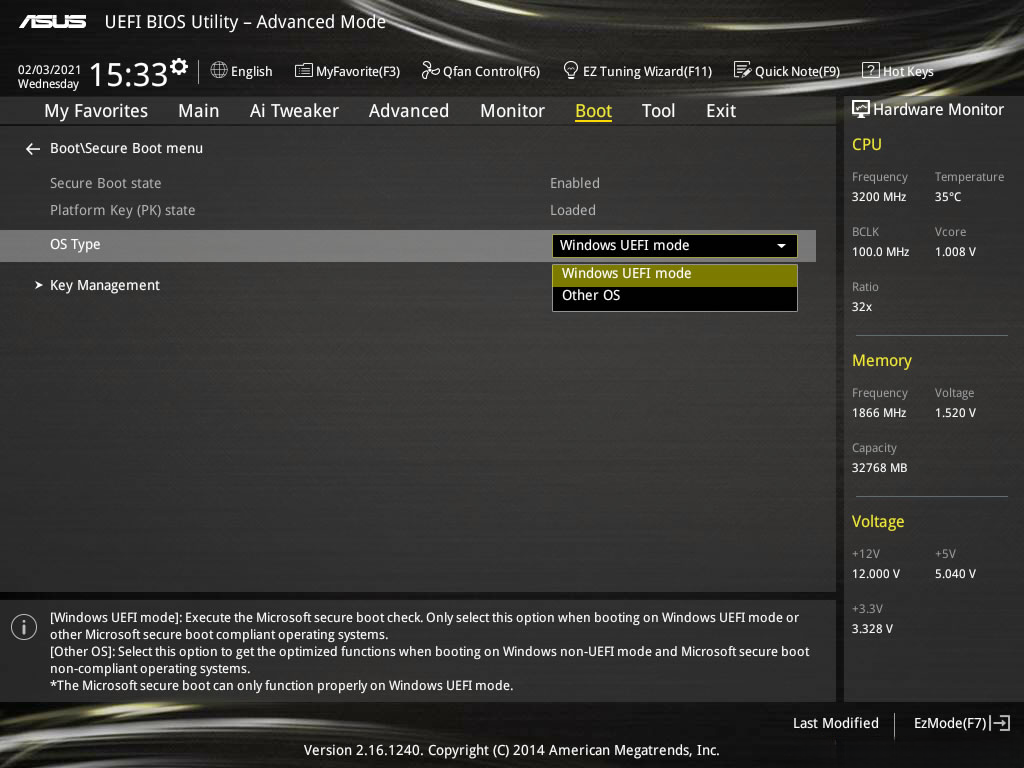
### 7. Disable Secure Boot

* Locate the setting named *Secure Boot*, typically located in *Advanced* or *Boot* menus
* Disable Secure Boot
  * sometimes, Secure Boot may have boot keys or secure keys; you can (in most cases) delete these keys, and then disable secure boot
  * you cannot disable secure boot with keys active; you must delete them first to modify the secure boot state

<figure><img src="https://3661827449-files.gitbook.io/~/files/v0/b/gitbook-x-prod.appspot.com/o/spaces%2FKDcbGlPDCQPYsgmPubxI%2Fuploads%2Fgit-blob-7282fd9e3002e543ee6b9a7da82717a6ce20ce2a%2F7-os-type-windows-uefi-mode.png?alt=media" alt="" width="563"><figcaption><p>Example of the ASUS BIOS.</p></figcaption></figure>

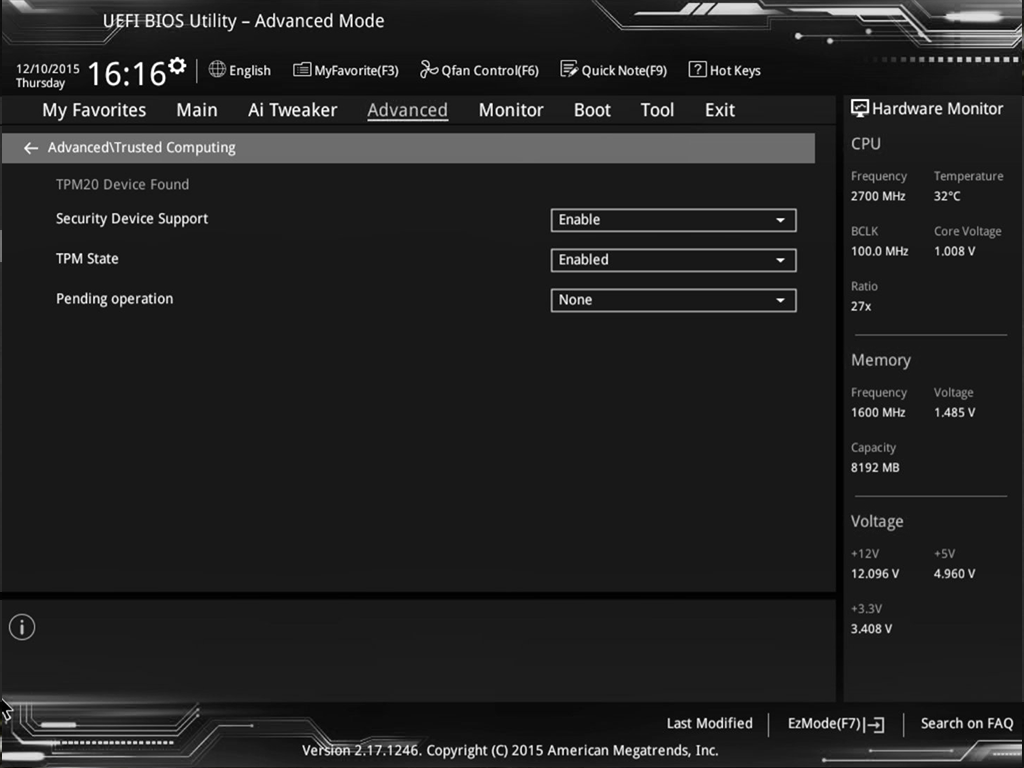
### 8. Disable TPM

* Locate the setting named *TPM*, or *Trusted Platform Module*, *Trusted Computing*, *Intel Platform Trust Technology*, etc., typically located in *Advanced* or *CPU* menus
* Disable TPM; set the TPM State to disabled.

<figure><img src="https://3661827449-files.gitbook.io/~/files/v0/b/gitbook-x-prod.appspot.com/o/spaces%2FKDcbGlPDCQPYsgmPubxI%2Fuploads%2Fgit-blob-6eed8e501169f9ee126efcd145356d6b0394c2bd%2Ftpm.png?alt=media" alt="" width="563"><figcaption><p>Example of the ASUS BIOS.</p></figcaption></figure>

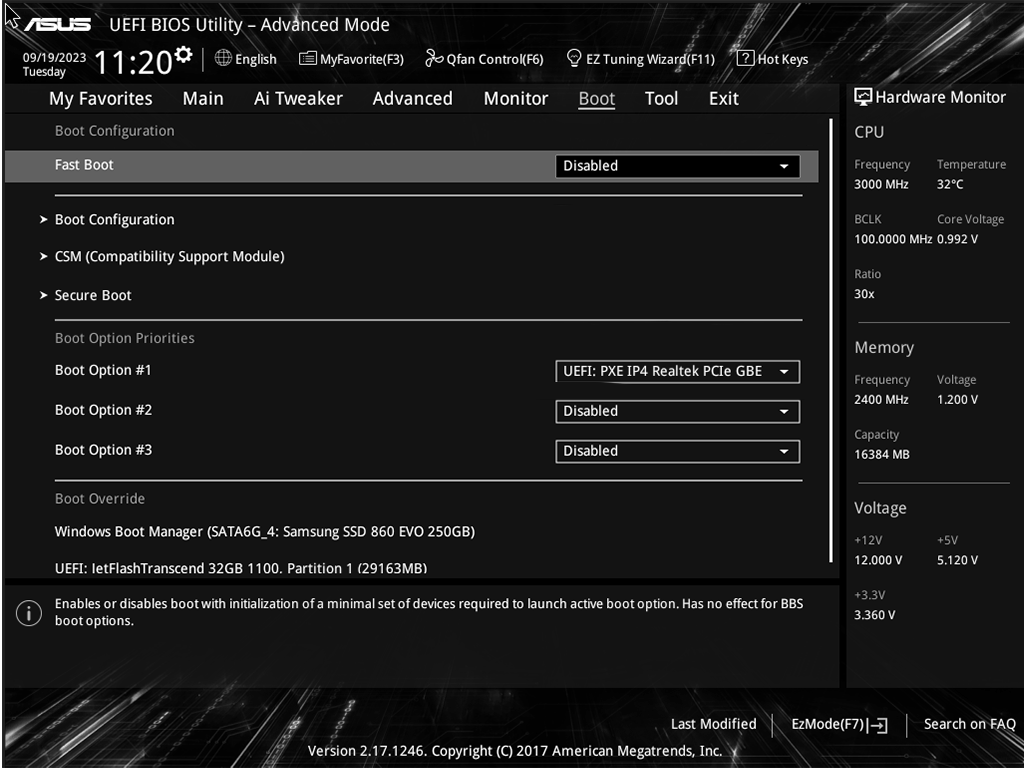
### 9. Disable Fast Boot

* Locate the setting named Fast Boot, etc., typically located in *Advanced* or *Boot* menus
* Disable Fast Boot

<figure><img src="https://3661827449-files.gitbook.io/~/files/v0/b/gitbook-x-prod.appspot.com/o/spaces%2FKDcbGlPDCQPYsgmPubxI%2Fuploads%2Fgit-blob-bee2b659cab3a8f50089cd0d968a6241ac587d87%2Ffast%20boot.png?alt=media" alt="" width="563"><figcaption></figcaption></figure>

### 10. Finishing up in BIOS

* Save changes and exit BIOS (typically, press F10 to save changes & reboot)
* Reboot the PC

### 11. Preparing the Game

* Launch the game
  * change video settings to `borderless windowed mode`
  * verify the game's resolution matches the [monitor's display resolution](ms-settings:display)
  * save any changes
  * close the game

### 12. Preparing the Loader

1. Download the loader file from [your order](https://account.dexa.im/orders)
2. [Extract the loader file](#user-content-fn-4)[^4] directly to your desktop or a folder
3. Right-click -> run as administrator
4. Input your license key from your order -> press ENTER

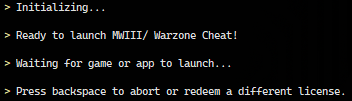
After a few moments, you will see:

<figure><img src="https://3661827449-files.gitbook.io/~/files/v0/b/gitbook-x-prod.appspot.com/o/spaces%2FKDcbGlPDCQPYsgmPubxI%2Fuploads%2Fgit-blob-6428847568ca4443eb8e251829149e0fc774da6f%2FNVIDIA_Share_t6Vxr3oalV.png?alt=media" alt="Ready to launch MWIII/Warzone cheat! Waiting for game or app to launch..."><figcaption><p>Loader sucessfully initialized.</p></figcaption></figure>

* Launch the game.

{% hint style="success" %}
Setup complete!
{% endhint %}

## Need help with bans, VPNs, spoofers & more?

Take a look at our Resources page:

{% embed url="<https://dexaim.gitbook.io/docs/resources/resources>" %}

### Call of Duty Bans

We have a detailed ban guide for Call of Duty titles here:

{% embed url="<https://dexaim.gitbook.io/docs/games/call-of-duty/bans-and-shadowbans>" %}

[^1]: Kernel-level software operates at the core of an operating system. The kernel manages system resources and provides a bridge between software and hardware.

[^2]: for example: AVAST, AVG, McAfee, Malwarebytes, etc.

[^3]: for example: Valorant Vanguard, ESEA, FACEIT, etc.

[^4]: Drag & drop the loader from the `.zip` file you downloaded.